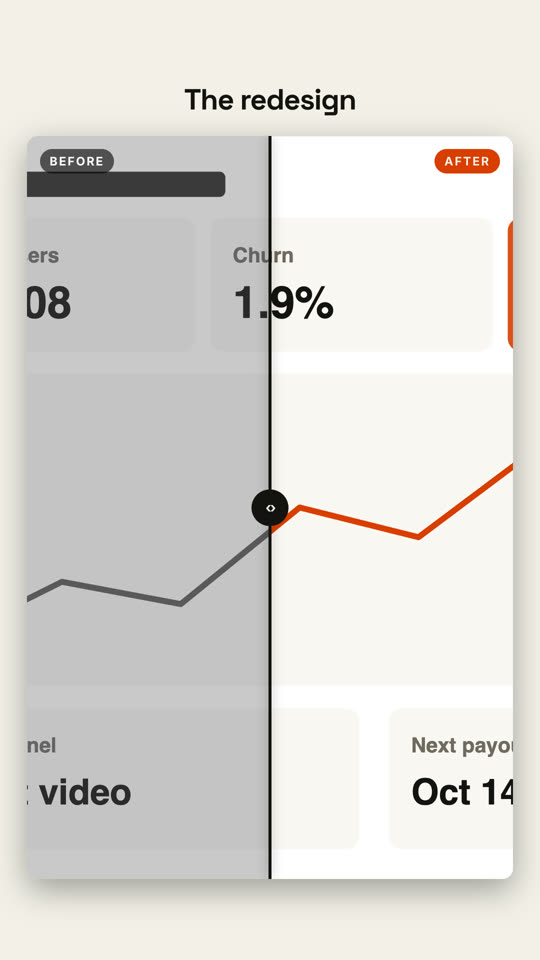
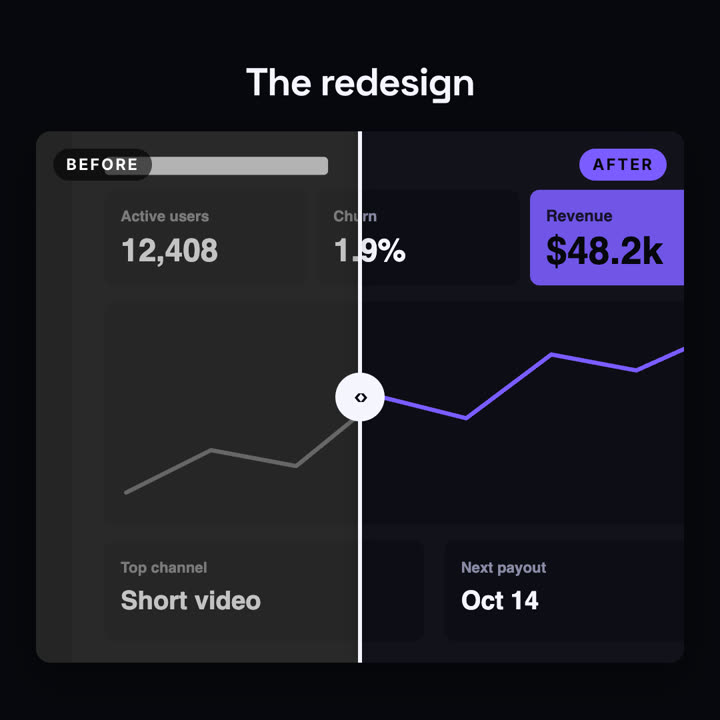
Images finales du même modèle, rendues avec un autre thème et un autre format.
5 thèmes
Aa
Encre · par défaut
ink
Aa
Papier
paper
Aa
Électrique
electric
Aa
Noir
Aa
Sable
sand
Indiquez un thème dans votre prompt, ou définissez vos propres couleurs d’accent, de fond et de texte.
Prompt d’installation
Lis https://claude-motion.com/skills/before-after/install.md, suis ses étapes pour installer la skill « before-after », puis fais une première vidéo avec.
Collez-le dans Claude Code, Codex, Cursor ou tout agent compatible avec les skills.
Exemple de prompt
Use the before-after skill with assets/old.png and assets/new.png, title "Checkout, rebuilt", labels "v1" and "v2". 16:9.
Prompt de style (Claude Motion ou Opus 5.5)
Make an 8-second 16:9 before-and-after comparison for [who will watch, e.g. customers], playing [where, e.g. the redesign announcement]. Use only the two screenshots and the title I give. Dark background.

The title fades in above a large rounded frame showing the before screenshot in grayscale, labeled "BEFORE". A white vertical divider with a round handle sweeps from right to left, revealing the after screenshot in full color with an orange "AFTER" tag. End frame: the divider swings back to about three quarters and settles in the middle.

Title: [e.g. "The redesign"]
Attach: [a before screenshot and an after screenshot, same size]
Rien à installer : collez-le dans Claude Motion (Team ou Enterprise) ou donnez-le à Opus 5.5 pour un rendu proche. Le résultat change à chaque exécution ; la skill donne toujours le même.